
Silk Mobile
Table of Contents (Homepage)
- Overview
- Setting Up
- Getting Started
- How To
- Connecting Devices And Emulators
- Preparing Applications For Testing
- Managing Applications
- Recording Tests
- Working With Test Commands
- Adding Commands To Your Scripts
- Object Commands
- Click
- ClickCoordinate
- ClickIn
- ClickOffset
- Drag
- ElementGetProperty
- ElementGetTableRowsCount
- ElementListPick
- ElementListSelect
- ElementListVisible
- ElementScrollToTableRow
- ElementSendText
- ElementSetProperty
- ElementSwipe
- ElementSwipeWhileNotFound
- GetAllValues
- GetElementCount
- GetElementCountIn
- GetTextIn
- IsElementBlank
- IsElementFound
- IsFoundIn
- LongClick
- RunNativeAPICall
- SendWhileNotFound
- VerifyElementFound
- VerifyElementNotFound
- VerifyIn
- WaitForElement
- WaitForElementToVanish
- GetCoordinateColor
- DragDrop
- Application Commands
- Device Commands
- Web (Hybrid) Specific Commands
- Utilities Commands
- Monitoring Commands
- Configuration Commands
- ExtractLanguageFiles
- SetDefaultClickDownTime
- SetDefaultTimeOut
- SetDefaultWebView
- SetDragStartDelay
- SetInKeyDelay
- SetKeyToKeyDelay
- SetLanguage
- SetLanguagePropertiesFile
- SetShowImageInReport
- SetShowPassImageInReport
- SetShowReport
- SetSpeed
- SetThrowExceptionOnFail
- SetWebAutoScroll
- StartStepsGroup
- StopStepsGroup
- TextFilter
- Miscellaneous Commands
- Controlling Element Identification Rules
- Editing Test Objects
- Executing Test Scripts
- Report Of Executed Test
- Working From Code Environment
- Continuous Integration
- Layout Verification Tests
- Use Device Vitals Monitors
- Troubleshooting
- Terminology
Event Recording - iOS
Event recording for iOS devices can be done on the Device's reflection only to create events, which will be added to the test.
Step 1: Click on the "Device" tab, and then click on 'Event Recording' button.
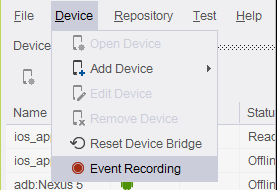
Event recording module.
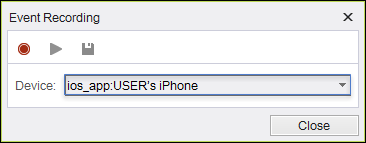
Step 2: Choose the device to record with and Click on the 'Record' button.
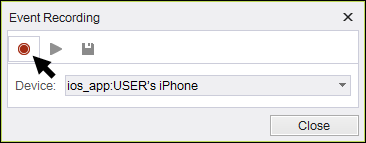
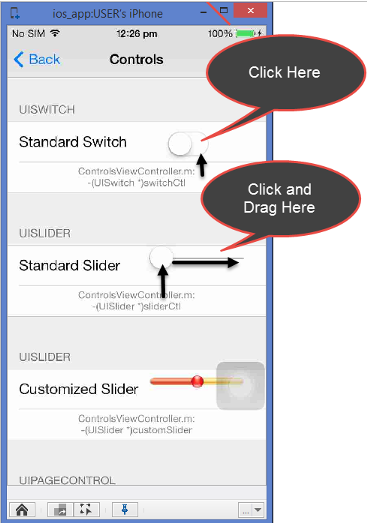
Step 3: Perform an action on the device's screen using your mouse.
Note: It should be a single action
Step 4: When you finish recording, click on the 'Stop' button.
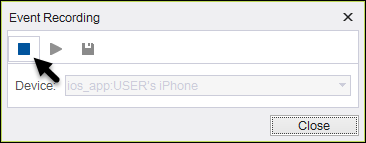
Step 5: Click on the 'Play' button to see if the action has been recorded the way you wanted.
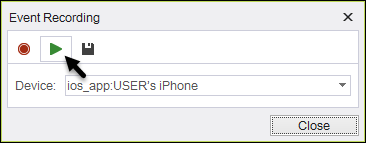
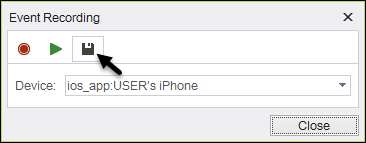
Step 6: Click on 'Save' button in order to save the event.
Saving the event will enable us to use it on the tests.
On the following example we will drag the slider to change its value.
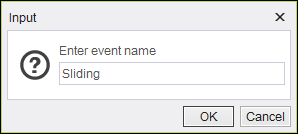
We will same the event by the name the event 'Sliding'.
You will then be ask you if you want to add this event in your current script.
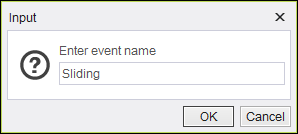
Clicking 'Yes' will add a new step at the end of the script.
Step 7: The command to execute the event is "sendText"
The Text parameter will be {event:event name} .

Code Examples
client.sendText("{event:Sliding}"); client.SendText("{event:Sliding}");client.SendText "{event:Sliding}"Report self.client.sendText("{event:Sliding}")$client->sendText("{event:Sliding}");